Using the App
This document describes common use-cases and scenarios for this App.
General Usage
PDU Manager lets you operate APC managed PDU (Network Management Card / AOS) outlets
directly from Nautobot — powering an outlet on or off, rebooting it, or reading outlet
status — using SSH driven by Nornir and Netmiko (the apc_aos driver).
It is built entirely on Nautobot's native power modeling: a PDU's outlets are
PowerOutlet components, a powered device exposes a PowerPort, and the relationship
between them is a power Cable.
Prerequisites / setup
-
Enable
nautobot_plugin_norniralongsidepdu_managerand configure it to read credentials from each device's Secrets Group:PLUGINS = ["nautobot_plugin_nornir", "pdu_manager"] PLUGINS_CONFIG = { "nautobot_plugin_nornir": { "nornir_settings": { "credentials": "nautobot_plugin_nornir.plugins.credentials.nautobot_secrets.CredentialsNautobotSecrets", "runner": {"plugin": "threaded", "options": {"num_workers": 10}}, }, }, # Optional: simulate the APC CLI for demos without real hardware. "pdu_manager": {"MOCK_CONNECTIONS": False}, } -
Model the PDU as a Device:
- Create a
Platformwith Network driver =apc_aosand assign it to the PDU device. - Give the PDU a primary IP (used as the SSH host).
- Attach a Secrets Group to the PDU device providing SSH
UsernameandPasswordsecrets (access type Generic/SSH). - Add a
PowerOutletfor each physical outlet, naming each outlet with the APC CLI outlet number as a trailing integer (e.g.Power Outlet 5). The number is parsed from the name — there is no custom field to set.
- Create a
-
Assign outlets to devices: cable a downstream device's
PowerPortto the PDU'sPowerOutlet(Nautobot's standard power connection).
The PDU's outlets and their connections, and a downstream device's power port, are just standard Nautobot DCIM components:


Use-cases and common workflows
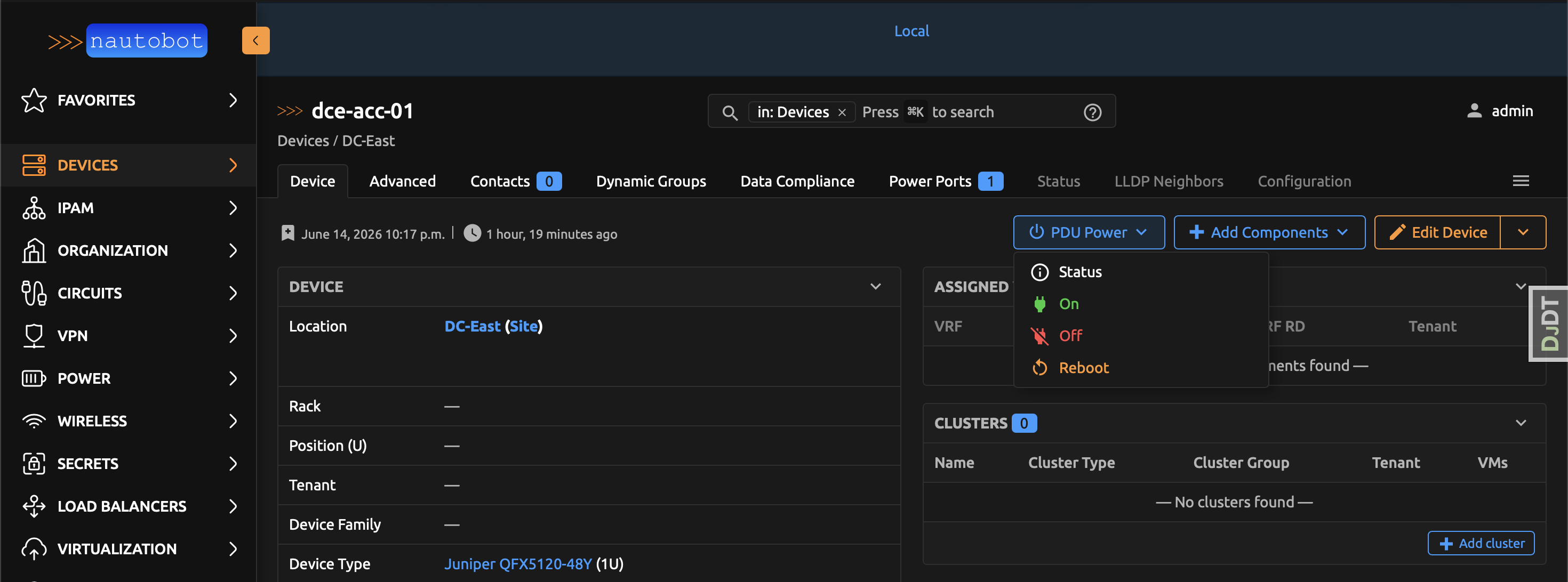
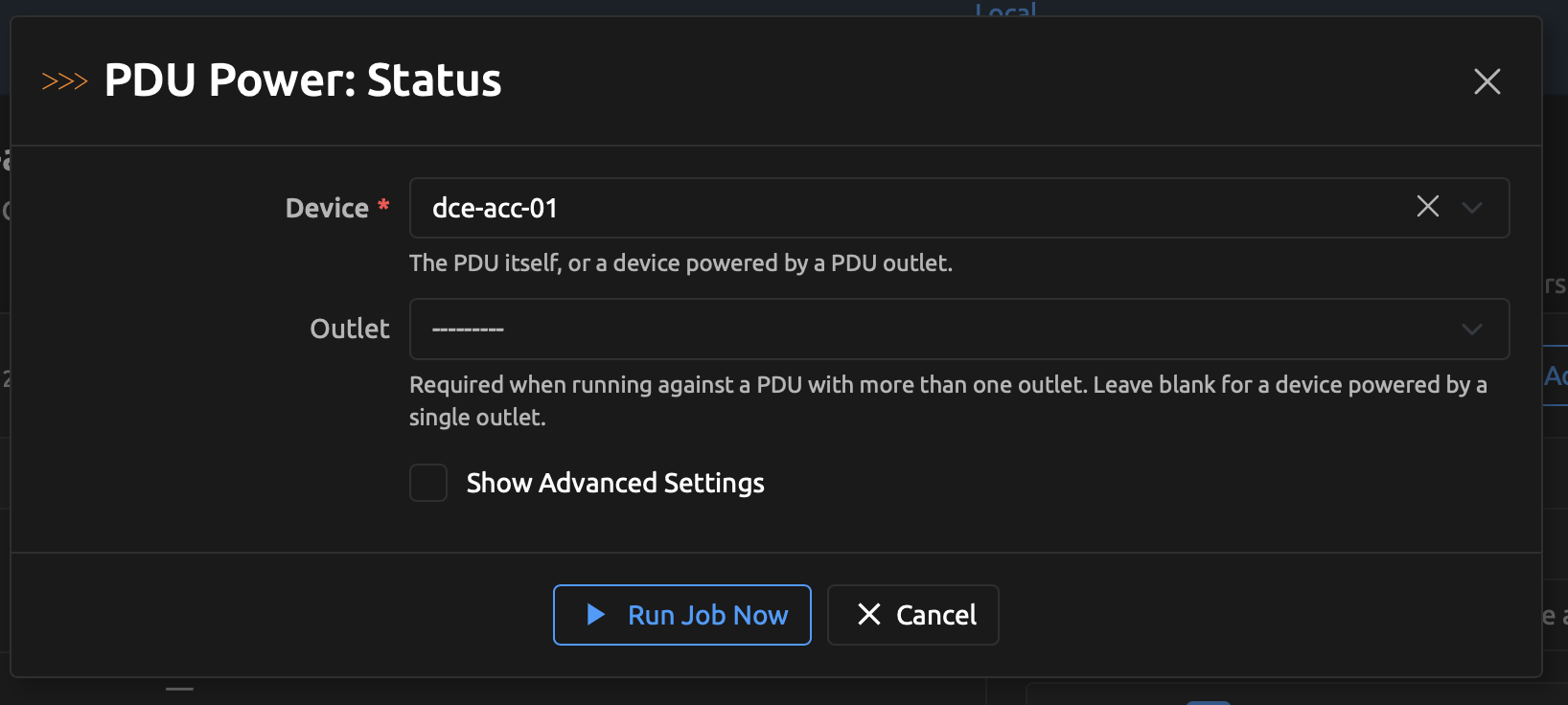
- Power a device from its detail page: the built-in PDU Power dropdown appears on every device detail page with Status / On / Off / Reboot items. Each item opens the matching Job in a modal with the device pre-filled; click Run Job Now to run it.
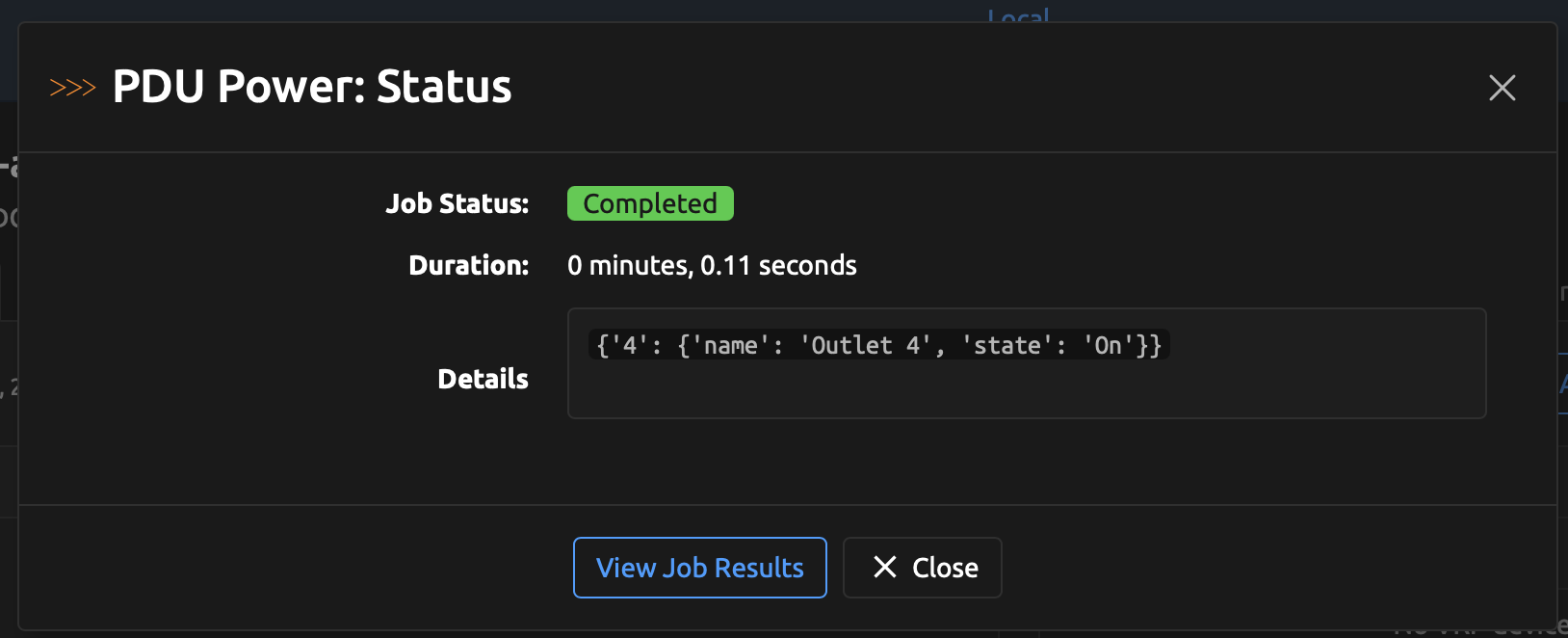
- Read outlet status: the Status action reports the state of just the outlet(s) feeding the selected device (running the Status action against a PDU device reports all of its outlets). Results appear in the Job Result.
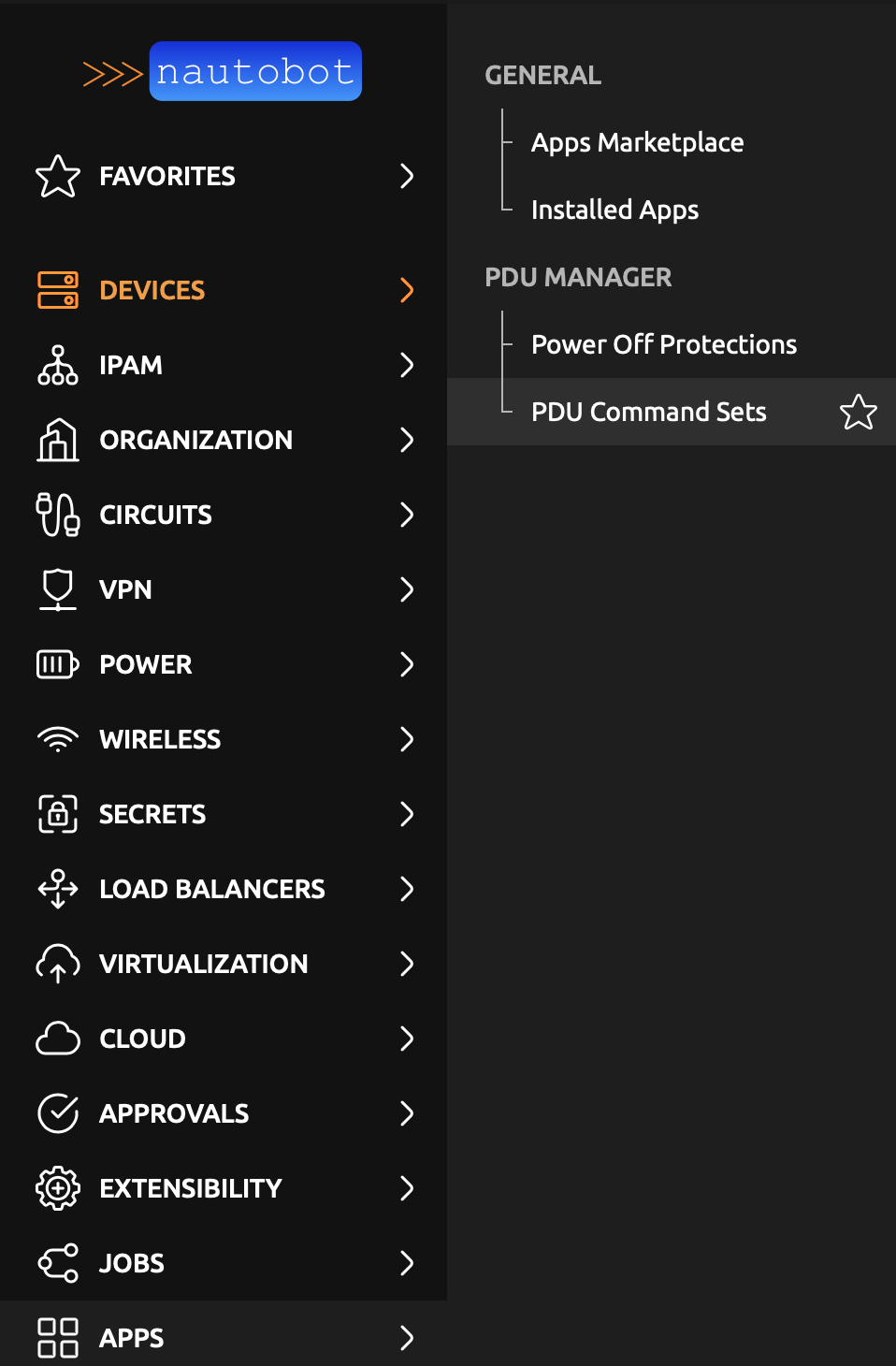
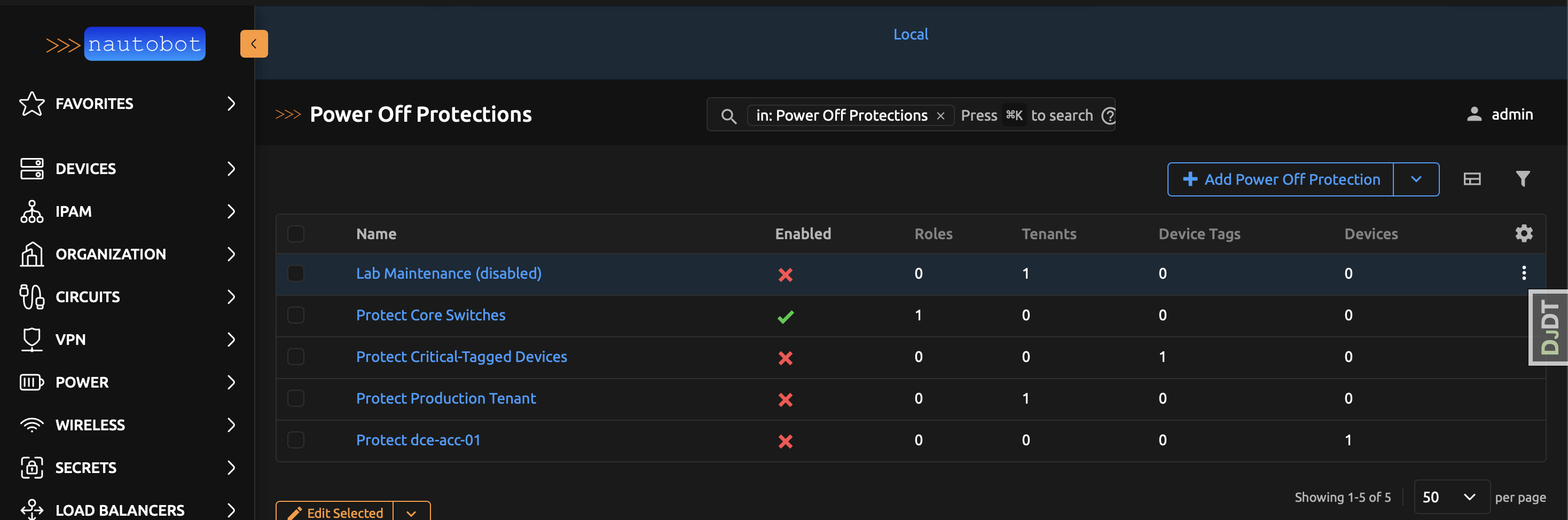
- Protect devices from power loss: create Power Off Protection rules (under
Apps → PDU Manager → Power Off Protections) that match devices by role, tenant, tag,
or explicit device. Off and Reboot are then refused for those devices and reported as a
Job Failure. Rules can be toggled with the
Enabledflag and managed via the REST API at/api/plugins/pdu-manager/power-off-protections/. - Run a Job directly: under Jobs, run PDU Power Control (choose a device, an optional outlet, and an action) or one of the per-action jobs.
Supporting other PDU vendors
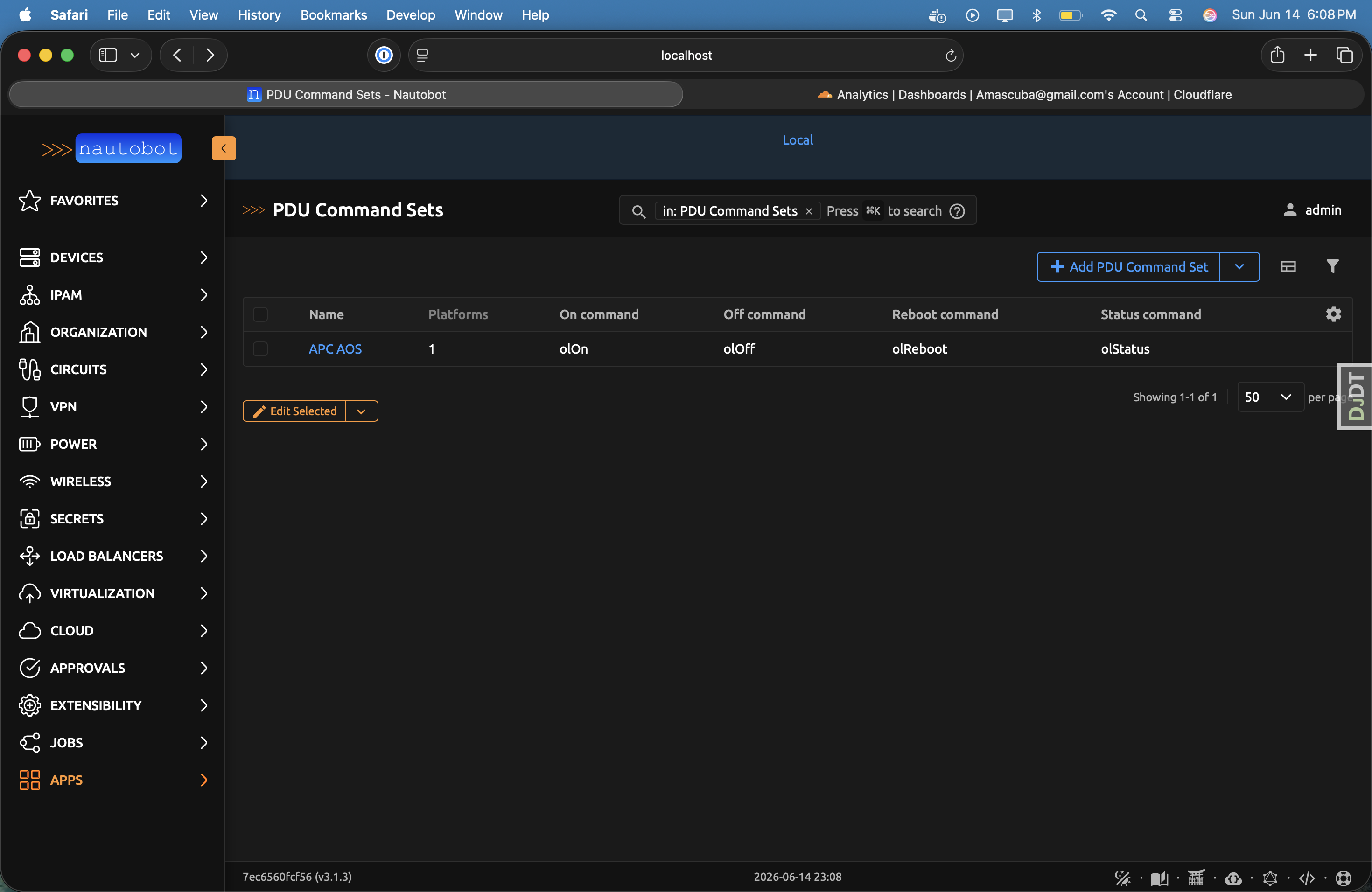
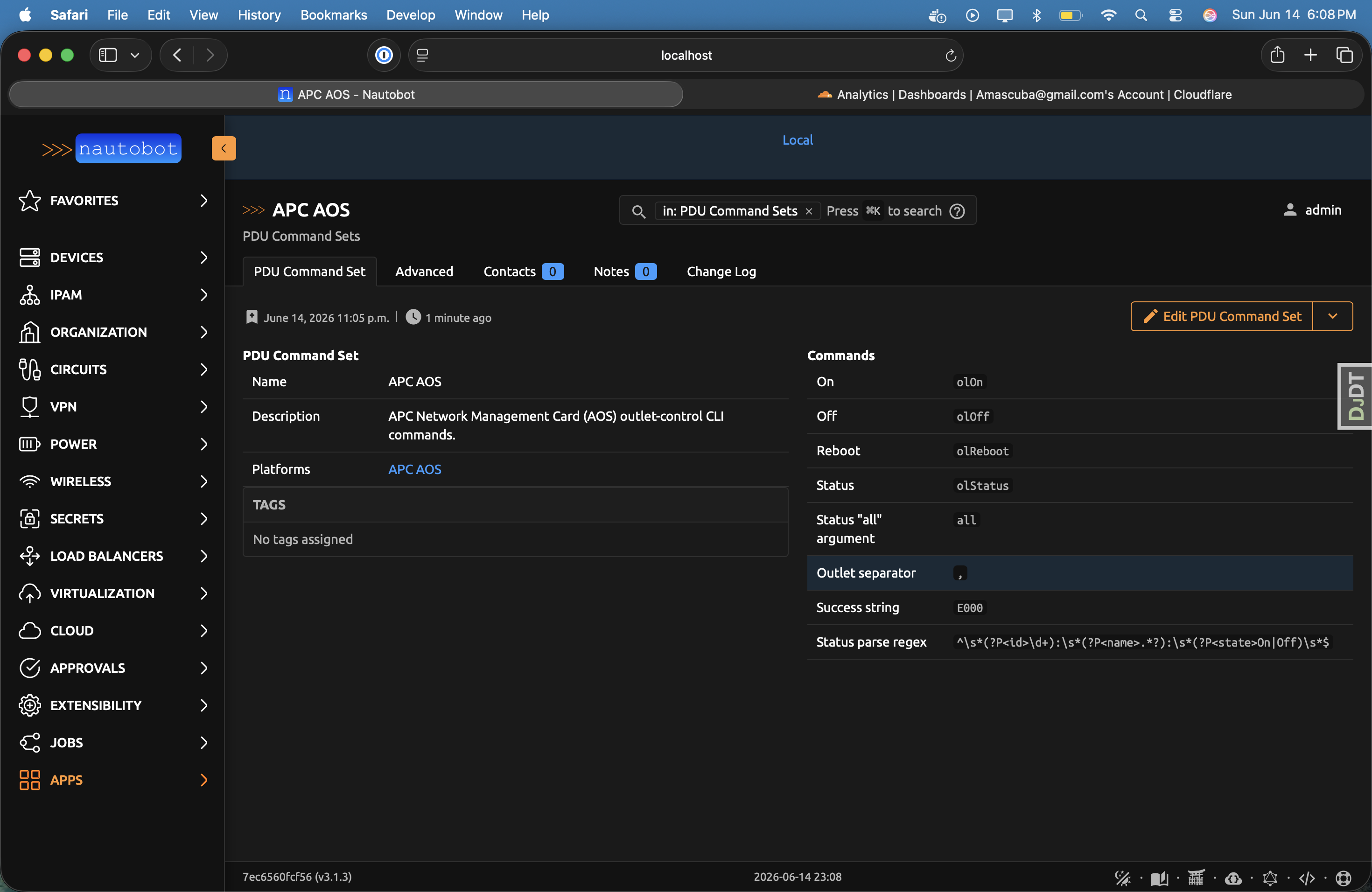
The CLI commands are not hard-coded — they come from a PDU Command Set (under
Apps → PDU Manager → PDU Command Sets) that is assigned to one or more Platforms. The
default APC AOS set is created automatically; to support a different managed PDU, add a new
command set, fill in the verbs that map to the On/Off/Reboot/Status actions, the success
string, and the status-parsing regex, and assign your PDU's platform — no code change.
When a power Job runs, it resolves the command set from the target PDU's Platform and uses those commands and the success/parse rules.
Screenshots
The built-in PDU Power dropdown on a device detail page:
Selecting an action opens the Job in a modal with the device pre-filled:
The Job Result reports the outcome — here, a Status read scoped to just the device's outlet:
Power Off Protection rules are managed under Apps → PDU Manager: